Receive to File Application (receive_to_file_app)
Receives sampled waveform data from platform’s rf ouput port and saves to file.
Description
The receive_to_file_app application receives a stream of samples from the platform’s rf port and writes the digital signal waveform samples to a binary file. Samples may be saved to the file as real or complex in the short or float format. A RCC component translates the received complex short samples to specified format as shown in Figure 1. The user may specify a frequency offset from the specified center carrier within a 40 MHz system bandwidth from -20 MHz to 20 MHz from the defined carrier frequency implemented by the complex mixer component. The default minimum system rate is 40 MSps supporting a total system bandwidth of 40 MHz. The samples are then downconverted from the 40 MSps rate to the user specified rate, converted to specified sample format, and then written to the file.
To maintain precision of the desired user rate, actual receive sample rate is determined by the the downsample factor and user data rate. The downsample factor is calcuated by deriving the ceiling on the minimal default rate divided by user rate. For example, if the rate of 270.833 kbps is required, then:
downsample_factor=ceil(minimal_system_rate/data rate) = ceil(40,000,000/270833) = 148; sample_rate = data_rate * downsample_factor = 270833 * 148 = 40083284 Hz;
The components shown in the dashed box in Figure 11: comprise the digital radio controller (DRC) whose properties are configured and managed by the DRC worker.
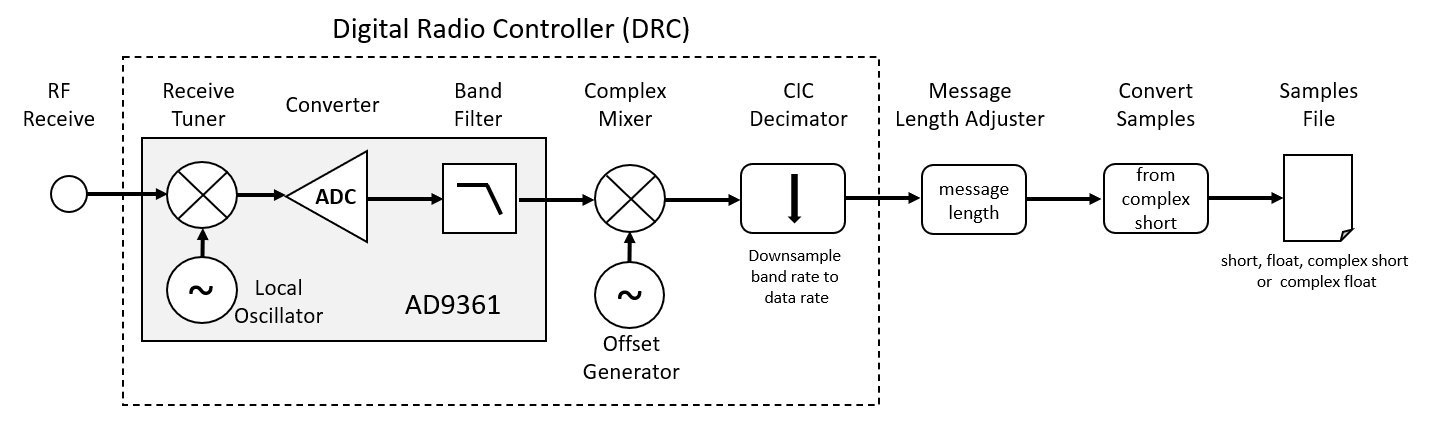
Figure 11: Receive to file processing path.
Figure 12: shows the RF output bandwidth allocation convention for the receive_to_file_app applications. The system bandwidth is set by default to 40 MHz. Using the application, a user defines the desired carrier center frequency, signal offset frequency, offset bandwidth, and signal data rate. The data rate will dictate the signal bandwidth. The offset bandwidth must be set to a minimal size to support the offset frequency or untended filtering of the signal will occur.
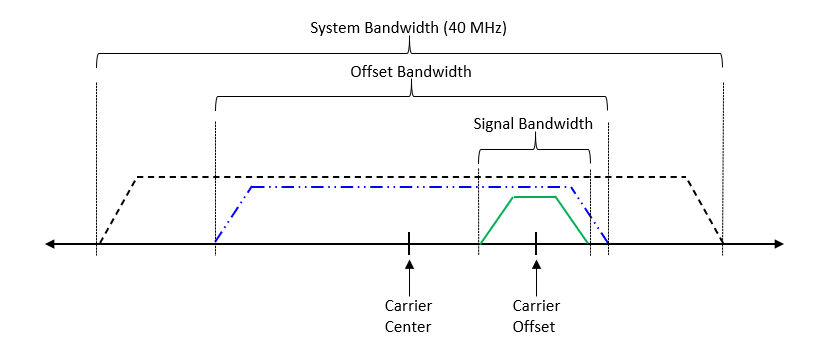
Figure 12: Receive to file band specification.
There are four variants of the receive_to_file_app application. Each application specifies the DRC but have a unique component specifically for converting samples to complex short based on specified file sample data type. If the data type of the samples in the file are complex short, this component is not required. The respective application is selected by the --file-type option.
- –file-type “short”
apps/receive_to_file_app_s.xml
- –file-type “float32”
apps/receive_to_file_app_f.xml
- –file-type “sc16”
apps/receive_to_file_app_xs.xml
- –file-type “fc32”
apps/receive_to_file_app_xf.xml
Hardware Portability
A single OpenCPI Application and HDL Assembly may be ported to support OpenCPI compliant platforms. Currently, the application has been tested for the following OpenCPI platforms:
Ettus E310
Analog Device ADALM-Pluto
Digilent ZedBoard with Analog Device FMCOMMS2 daughter board
AMD Zynq UltraScale+ MPSoC ZCU104
This application has been tested and verified to execute on the following platforms:
e31x
plutosdr
zed
zcu104
ubuntu22_04
Execution
Please refer to the receive_to_file_app application README.md file in the project’s git repository for instructions to build and execute the receive_to_file Application.
Limitations
At this time, the DRC does not implement IQ imbalance correction which may occur due to complex mixing. However, an IQ imbalance component is available in the SDR components library and will be incorporated into the DRC in a future patch release.
Troubleshooting
None at this time.
Worker Artifacts
The application currently supports an all HDL component assembly. The assembly is located in the following directory:
~/opencpi/projects/examples/hdl/assemblies/receive_to_file_app/
Three platform container files are available to build the assembly for the fmcomms, e31x, and plutosdr platforms and located in the assembly directory.
The fmcomms container supports both the zed and zcu104 platforms.